To speed up or slow down a video, open it in a tool with a speed control, pick a multiplier above 1× to make it faster or below 1× to make it slower, and export a new file. The quickest free way is a browser tool: ChatCut’s video speed changer offers 0.25× to 4× and saves an MP4 on your own device, with no upload. On an iPhone, iMovie and (for high-frame-rate clips) the Photos app can do it; on Windows, Clipchamp has a speed slider; and FFmpeg does it in one command anywhere.
One thing decides whether slow motion looks good: how many frames per second the camera recorded. We tested every method below on the same file, a 10-second, 1920 × 1080 clip of horses running through water, recorded at 24 fps (4.2 MB). The numbers come from that file, checked on November 18, 2026.
Key takeaways
- Speed up: any method works well. At 2×, our 10-second clip became 5 seconds.
- Slow down normal footage: it plays longer, but it doesn’t get smoother. Our 24 fps clip at 0.5× had only 12 real frames per second.
- Smooth slow motion needs high-fps capture. Record at 120 or 240 fps (most phones have a Slo-mo mode), then slow it down.
- Sound: ChatCut’s browser tool removes the audio at every speed. iMovie, Clipchamp and FFmpeg can keep it, retimed.
- Software can invent in-between frames, but it’s slow and can warp fast motion. FFmpeg took 34 seconds to do it for our 20-second result.
Why slowed-down video can look choppy
A video is a series of still frames. Slowing it down doesn’t create new moments of motion; it shows each existing frame for longer. So the frame rate you actually see is the recorded frame rate times the speed:
| Recorded at | Speed | Real frames per second you see | Looks like |
|---|---|---|---|
| 24 fps | 0.5× | 12 | Visibly stepped |
| 30 fps | 0.5× | 15 | Stepped |
| 60 fps | 0.5× | 30 | Smooth |
| 120 fps | 0.25× | 30 | Smooth slow motion |
| 240 fps | 0.25× | 60 | Very smooth |
That’s why phones record slow motion at a high frame rate in the first place. If your clip was shot at 24 or 30 fps, you can still slow it down, just expect the movement to stutter, and keep slow sections short or use 0.75× instead of 0.25×.
Here’s what ChatCut’s speed changer produced from our 24 fps clip. It keeps all 241 original frames and changes how long each one is shown:
| Speed | Length | Frame rate in the file | Size | Audio |
|---|---|---|---|---|
| 0.25× | 0:40 | 6 fps | 4.9 MB | None |
| 0.5× | 0:20 | 12 fps | 4.9 MB | None |
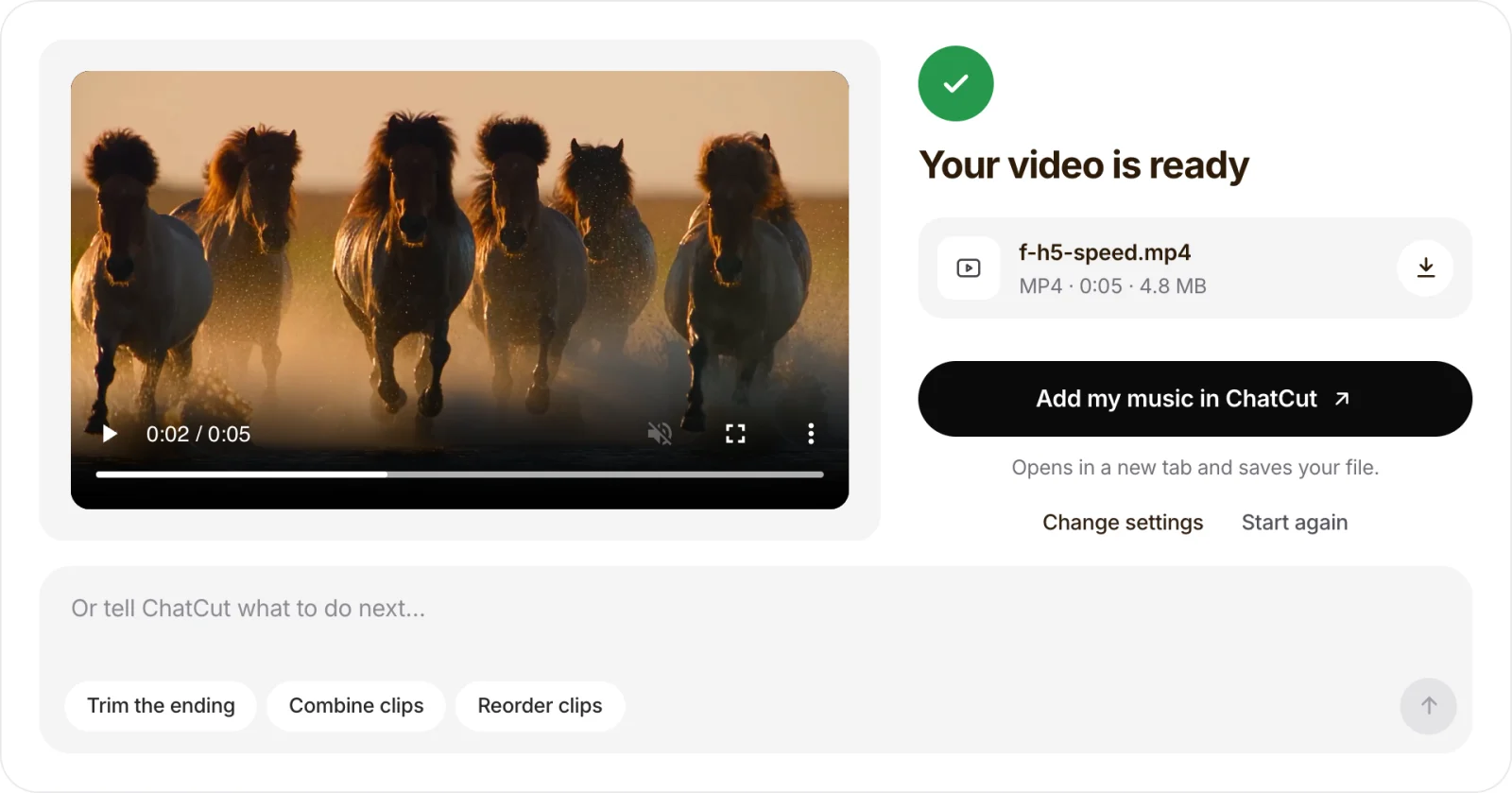
| 2× | 0:05 | 48 fps | 4.8 MB | None |
| 4× | 0:03 | 96 fps | 4.8 MB | None |
The sped-up files are worth a second look: because no frames are dropped, 2× gives a 48 fps file and 4× gives a 96 fps file. That’s fine for most players, but see the checklist below if you plan to upload it.
Method 1: Change the speed in your browser (any computer)
Use this when you want a quick speed change on a silent shot, such as B-roll, a process demo or a clip you’ll put music under later. ChatCut’s free video speed changer decodes and re-encodes the video inside the browser tab, so the file stays on your device.
- Choose the video. Drop in an MP4, MOV or WebM. The tool accepts clips up to 3 minutes, 1080p and 512 MB, and the result must stay within 4 minutes, so a clip longer than 1 minute can’t go to 0.25×.
- Pick a speed. The menu has eight choices: 0.25×, 0.5×, 0.75×, 1×, 1.5×, 2×, 3× and 4×. The note under it tells you the output has no audio and that no AI frame interpolation is applied.
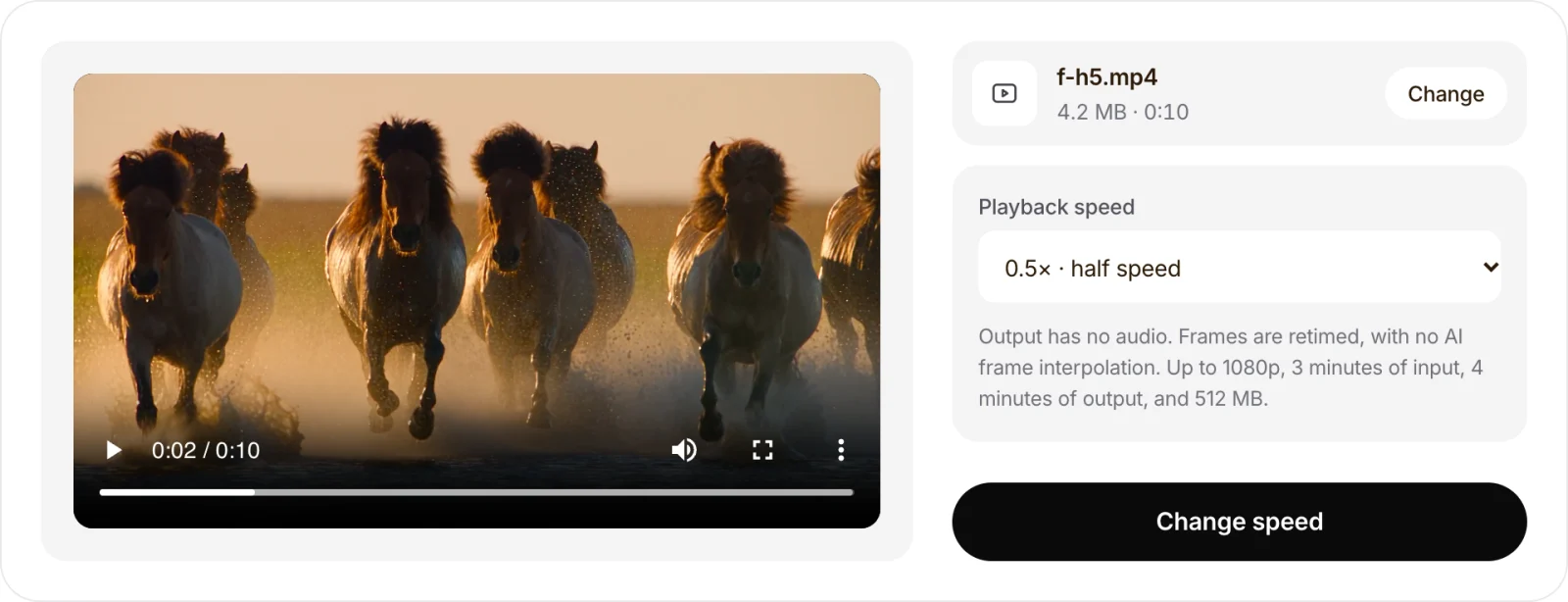
- Press Change speed, then check and download. Our 0.5× version finished in about a second in Chrome on a MacBook. The preview is muted because the new file has no sound track.
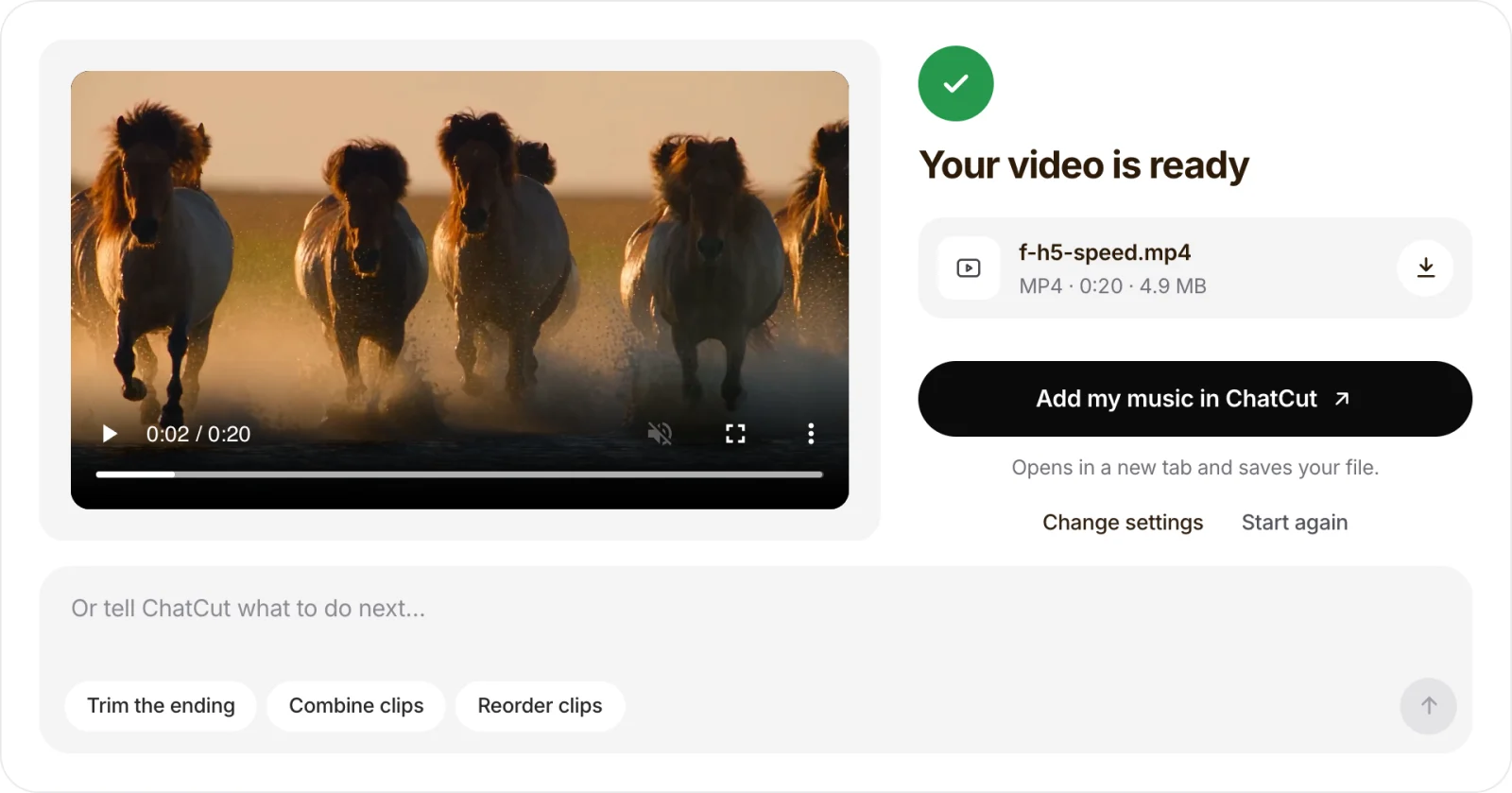
The same clip at 2× took the same few clicks and came out at 5 seconds:
The tool applies one speed to the whole clip. To slow down just one moment, cut that part out first with the video trimmer, or split the clip in an editor and set the speed per section.
Method 2: iPhone (Photos for Slo-mo, iMovie for everything else)
The Photos app has two speed controls, and both depend on how the video was recorded:
- Slo-mo videos: open the video, tap Edit, and drag the vertical bars under the frame viewer to set where it plays in slow motion. This works only for clips shot in the Camera’s Slo-mo mode.
- High-frame-rate videos (iOS 18 or later): open the video, tap Edit, tap Video, then tap the Playback Speed button and choose a speed. Apple says this works for videos recorded above 30 fps, and the choices depend on how the clip was captured. You won’t see it for an ordinary 30 fps video.
Both are described in Apple’s guide to trimming video and adjusting speed on iPhone and its video editing overview.
For any other video, including speeding one up, use Apple’s free iMovie: add the clip to a project, tap it in the timeline, tap the Speed button, then drag the slider right to speed it up or left to slow it down. You can add several speed ranges inside one clip. iMovie keeps the audio and, by default, keeps its pitch, so voices don’t turn into chipmunks; turn on Speed changes pitch in the project settings if you want the old effect. Steps from Apple’s iMovie for iPhone guide; iMovie on a Mac has an equivalent speed control.
Method 3: Clipchamp on Windows
Clipchamp comes with Windows 11 and also runs in a browser.
- Add the video to the timeline and click it.
- Open the Speed tab in the property panel on the right.
- Drag the slider or type a value. Microsoft lists a range from 0.1× to 16×.
- Export the video.
The audio is retimed with the clip: speeding up shortens it, slowing down lengthens it. To change a section, split the clip first. Steps from Microsoft’s Clipchamp guide.
Method 4: FFmpeg (keeps the audio, any system)
FFmpeg changes video speed with the setpts filter and audio speed with atempo. These are the commands we ran on our test clip:
# 2x faster, audio sped up without changing pitch: 0:05, 24 fps, 4.4 MB
ffmpeg -i input.mp4 -filter_complex "[0:v]setpts=0.5*PTS[v];[0:a]atempo=2.0[a]" -map "[v]" -map "[a]" fast.mp4

# Half speed with audio: 0:20, 12 fps, 7.3 MB
ffmpeg -i input.mp4 -filter_complex "[0:v]setpts=2.0*PTS[v];[0:a]atempo=0.5[a]" -map "[v]" -map "[a]" slow.mp4

# Quarter speed: atempo goes no lower than 0.5, so chain it twice. 0:40, 6 fps
ffmpeg -i input.mp4 -filter_complex "[0:v]setpts=4*PTS[v];[0:a]atempo=0.5,atempo=0.5[a]" -map "[v]" -map "[a]" quarter.mp4

# Half speed with invented in-between frames (motion interpolation), no audio
ffmpeg -i input.mp4 -vf "setpts=2.0*PTS,minterpolate=fps=24:mi_mode=mci" -an smooth.mp4
setpts=0.5*PTS halves every frame’s timestamp, so the video plays twice as fast; 2.0*PTS doubles it. Unlike the browser tool, FFmpeg’s 2× command kept the file at 24 fps by dropping every other frame (122 frames instead of 241).
The last command is the closest you can get to slow motion from normal footage. It generated 479 frames for a 20-second, 24 fps result, but it took 34 seconds for our 10-second clip, against 2.5 seconds for the plain half-speed command. Invented frames can smear or warp fast edges such as legs, hands and water spray, so watch the result closely. All options are in the FFmpeg filter documentation.
Check it before you share it
These are the problems we ran into, and how to handle them:
- The slow motion stutters. The source frame rate is too low for that speed (our 24 fps clip at 0.25× was 6 real frames per second). Use 0.5× or 0.75×, re-shoot in Slo-mo, or try FFmpeg’s
minterpolate. - The sound is gone. ChatCut’s browser tool removes audio at every speed, including 1×. Keep the original if you need its sound, or use iMovie, Clipchamp or FFmpeg to retime the audio too. To add new music instead, see how to add music to a video.
- A sped-up file has an unusual frame rate. Our 4× result was 96 fps. If an app or upload site won’t accept it or it plays unevenly, convert it to a standard rate. We ran
ffmpeg -i sped-up.mp4 -r 30 sped-up-30fps.mp4, which gave a 2.6-second, 30 fps file. - The result is too long. The browser tool caps output at 4 minutes. Divide the length by the speed before you start: a 90-second clip at 0.25× would be 6 minutes. Trim it first with the video trimmer.
- Voices sound wrong. Fast speech quickly gets hard to follow, even with pitch kept. For talks and tutorials, cutting pauses is often a better way to shorten them than raising the speed.
- Only one moment should be slow. Split the clip and change only that part, in iMovie, Clipchamp or the ChatCut editor.
What to do next
- Put sound back under it. A silent sped-up or slowed-down clip usually needs music: add music to a video in ChatCut.
- Combine it with other shots. Join the retimed clip with the rest of your footage using merge videos.
- Make a loop or boomerang. Run it through the loop video or reverse video tools, or see how to reverse a video.