To convert MOV to MP4, open the file in a converter, choose MP4 as the output, and save the new copy. The quickest free way is a browser tool: ChatCut’s MOV to MP4 converter works on your own device, so nothing is uploaded, and when the MOV already holds H.264 video and AAC audio it copies them into the MP4 in a fraction of a second, with no quality loss. On Windows, VLC and HandBrake are the usual free choices, and FFmpeg does it in one command on any system. QuickTime Player, perhaps surprisingly, can’t save MP4 at all.
We ran every method below on the same 20-second creator take, as a MOV, an MKV and a WebM, plus an HEVC version of the MOV like the ones iPhones record. The numbers in this guide come from those files, checked on November 18, 2026.
Key takeaways
- MOV and MP4 are containers, not quality settings. If the MOV holds H.264 and AAC, conversion is just repackaging: our 3.8 MB MOV became a 3.8 MB MP4 in 0.1 seconds.
- iPhone MOVs are often HEVC. Converting those to a widely playable H.264 MP4 means re-encoding, and the file can get bigger. Ours went from 4.0 MB to 19.4 MB in the browser tool.
- MKV is usually a quick repackage too; WebM almost never is, because it holds VP8 or VP9 video and Opus or Vorbis audio.
- QuickTime Player can’t export MP4. Its exports are always .mov. Use another method from this guide.
- Converting won’t make a file smaller. If size is the problem, use a video compressor after converting.
Copy or re-encode? What we measured
What’s inside the file decides how the conversion goes. Here is what happened with each test file in ChatCut’s browser converters:
| Source file | What’s inside | MP4 result | Time | What happened |
|---|---|---|---|---|
| MOV, 3.8 MB | H.264 video, AAC audio | 3.8 MB | 0.1 s | Both tracks copied, no quality change |
| MKV, 3.8 MB | H.264 video, AAC audio | 3.8 MB | 0.1 s | Both tracks copied, no quality change |
| MOV, 4.0 MB | HEVC (H.265) video, AAC audio | 19.4 MB | 1.3 s | Video re-encoded to H.264, audio copied |
| WebM, 4.9 MB | VP9 video, Opus audio | 19.6 MB | 1.3 s | Both tracks re-encoded |
The two big results aren’t a mistake. When the converter has to re-encode, it writes H.264 at about 8 Mbps so the picture holds up, and H.264 needs more data than HEVC or VP9 for the same quality. That’s the price of a file that plays almost everywhere. If you need it smaller, compress the MP4 afterwards.
To check what’s inside your own file before converting: on a Mac, open it in QuickTime Player and choose Window → Show Movie Inspector, which lists the format; on any system, run ffprobe input.mov and look at the Video: and Audio: lines.
How we made the test files: we took a 20-second H.264 creator take from our site and repackaged it as MOV and MKV with ffmpeg -c copy, which doesn’t change the tracks. The HEVC MOV and the WebM were encoded from the same clip with FFmpeg to stand in for an iPhone recording and a browser recording.
Method 1: Convert in your browser (any computer)
ChatCut’s free MOV to MP4 converter runs inside the browser tab with WebCodecs: the video is read and the MP4 is written on your device.
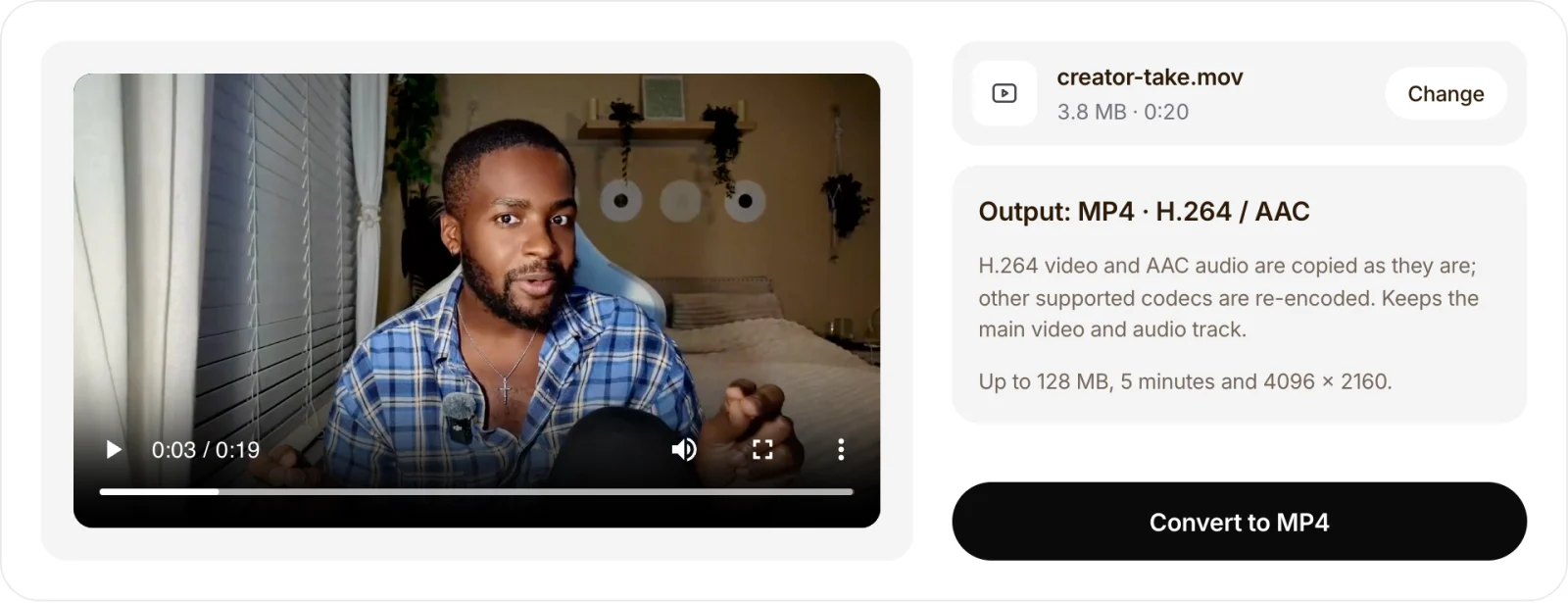
- Choose the MOV. Open the MOV to MP4 tool and drop in your file. It takes files up to 128 MB, 5 minutes long and 4096 × 2160 pixels.

- Check the output and convert. The panel shows the output, MP4 · H.264 / AAC, and plays a preview of your file. H.264 and AAC tracks are copied as they are; other codecs the browser can read are re-encoded. Press Convert to MP4.
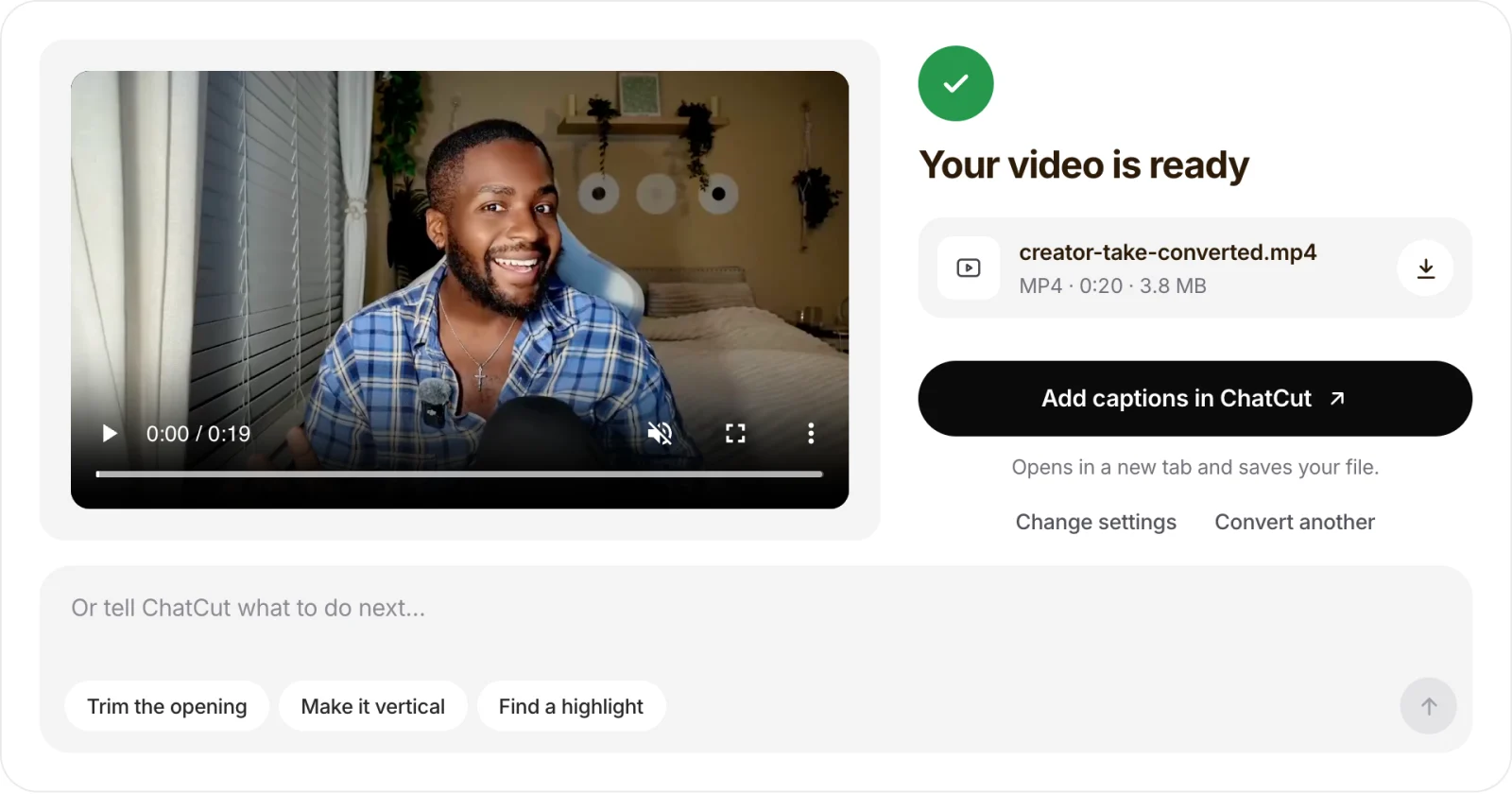
- Preview and download. Play the result to check the picture and sound, then save it with the download button. Your original MOV isn’t changed.
The same converter is available for MKV to MP4 and WebM to MP4, and the general video converter takes MP4, MOV, MKV and WebM and can write MP4 or WebM. All of them keep the main video and audio track only: extra soundtracks, subtitle tracks and attachments in an MKV aren’t carried over.
Method 2: QuickTime Player on a Mac (with a catch)
QuickTime Player is the obvious choice on a Mac, but Apple’s QuickTime guide is clear: it exports QuickTime movies (.mov) and “doesn’t export movies as MP4 videos.”
It’s still useful for one thing. If your MOV is HEVC and the person you’re sending it to can’t play HEVC, choose File → Export As → 1080p and set Format to Greater Compatibility. That writes an H.264 MOV, which any of the other methods here can then turn into an MP4 by copying the tracks, without a second re-encode.
Method 3: VLC (Windows, Mac and Linux)
VLC is free and can write an MP4.
- Choose Media → Convert / Save (on a Mac: File → Convert / Stream).
- Click Add, pick your MOV, MKV or WebM, then click Convert / Save.
- In Profile, choose Video – H.264 + MP3 (MP4).
- Click Browse and type a file name ending in .mp4.
- Click Start.
VLC re-encodes the video with this profile, so it’s slower than copying and the quality can change. Users on the VideoLAN forum report MOV conversions with no sound; if that happens, open the profile’s settings and check the audio codec is enabled.
Method 4: HandBrake (Windows, Mac and Linux)
HandBrake is the better pick when you have many files or want control over quality.
- Open HandBrake and drag in your video, or a folder of videos.
- Keep the default preset, Fast 1080p30, which makes an H.264 MP4 with AAC audio according to HandBrake’s official preset list.
- Make sure the format is MP4, choose where to save, and press Start Encode.
HandBrake always re-encodes the video. That’s right for HEVC and WebM files, but for an H.264 MOV it’s slower than it needs to be and loses a little quality; copy the tracks instead with Method 1 or Method 5.
Method 5: FFmpeg (one command, any system)
FFmpeg is the most direct way to see the difference between copying and re-encoding. These are the exact commands we ran on our test files:
# H.264/AAC MOV → MP4 by copying the tracks: 3.8 MB, 0.04 s, identical quality
ffmpeg -i input.mov -c copy -movflags +faststart output.mp4

# MKV with H.264/AAC → MP4, same idea: 3.8 MB, 0.03 s
ffmpeg -i input.mkv -c copy -movflags +faststart output.mp4

# HEVC MOV → H.264 MP4 that plays almost anywhere: 5.9 MB, 1.5 s
ffmpeg -i iphone-hevc.mov -c:v libx264 -crf 20 -preset medium -c:a copy -movflags +faststart output.mp4

# HEVC MOV → HEVC MP4 by copying (small, but only for players that support HEVC): 4.0 MB, 0.02 s
ffmpeg -i iphone-hevc.mov -c copy -tag:v hvc1 -movflags +faststart output.mp4

# WebM (VP9/Opus) → H.264/AAC MP4: 6.7 MB, 1.5 s
ffmpeg -i input.webm -c:v libx264 -crf 20 -preset medium -c:a aac -b:a 160k -movflags +faststart output.mp4
-c copy moves the tracks into the new container without touching them, which is why it takes a fraction of a second. It only works when the codecs suit the target: VP9 video and Opus or Vorbis audio from a WebM won’t play in many MP4 players, so re-encode them to H.264 and AAC. -tag:v hvc1 helps Apple devices recognise copied HEVC video. -movflags +faststart puts the index at the start of the file so it starts playing sooner on the web.
Note that FFmpeg’s re-encodes here came out smaller than the browser tool’s: CRF 20 lets the encoder pick the bitrate from the content, while the browser tool uses a fixed 8 Mbps to be safe on any footage.
On an iPhone: avoid the MOV problem
iPhones save videos as MOV files, and with the default High Efficiency setting they record HEVC. Two settings help, according to Apple’s HEIF and HEVC guide:
- Record H.264 instead. Go to Settings → Camera → Formats and choose Most Compatible. New videos use H.264, which converts to MP4 by copying. Files are larger than HEVC.
- Let sharing convert for you. When you share by AirDrop, Messages or email, or import to a PC over USB, iOS may convert the video to H.264 automatically if the other side can’t use HEVC.
For a file you already have, open the MOV to MP4 tool in Safari. Whether an HEVC file converts depends on your browser’s HEVC support.
Check the file before you send it
These are the problems we ran into, and how to fix them:
- The MP4 is much bigger than the MOV. Your source was HEVC or VP9 and had to be re-encoded to H.264. That’s expected; run the MP4 through the video compressor, or keep it HEVC with the FFmpeg copy command if the recipient can play HEVC.
- “This browser cannot convert one of the video or audio tracks.” Browser converters depend on the codecs your browser can decode. HEVC and ProRes support varies by browser and operating system. Try Safari or recent Chrome, or use HandBrake or FFmpeg.
- The file is over the limit. ChatCut’s converters take files up to 128 MB and 5 minutes. For longer recordings, use HandBrake or FFmpeg, or cut the part you need first with the video trimmer.
- Subtitles or a second audio language are missing. Browser converters keep the main video and audio track only. Keep the MKV if you need its subtitle tracks, or add new captions in ChatCut.
- You renamed .mov to .mp4 and it plays in some apps but not others. Renaming only changes the file name, not the container. Convert it properly so every app reads it as an MP4.
- Transparency or HDR looks wrong. H.264 MP4 doesn’t keep the alpha channel from a ProRes 4444 MOV or a transparent WebM, and HDR may look different. Keep the original for anything that depends on those.
What to do with the MP4 next
Most people convert to MP4 because the next app asks for it. A few common next steps:
- Make it small enough to send. See how to make a video smaller for email and Discord sizes.
- Add captions. Put word-by-word subtitles on the video with ChatCut’s subtitle generator.
- Pull out the sound. If you only need the audio, the MOV to MP3 converter skips the MP4 step.